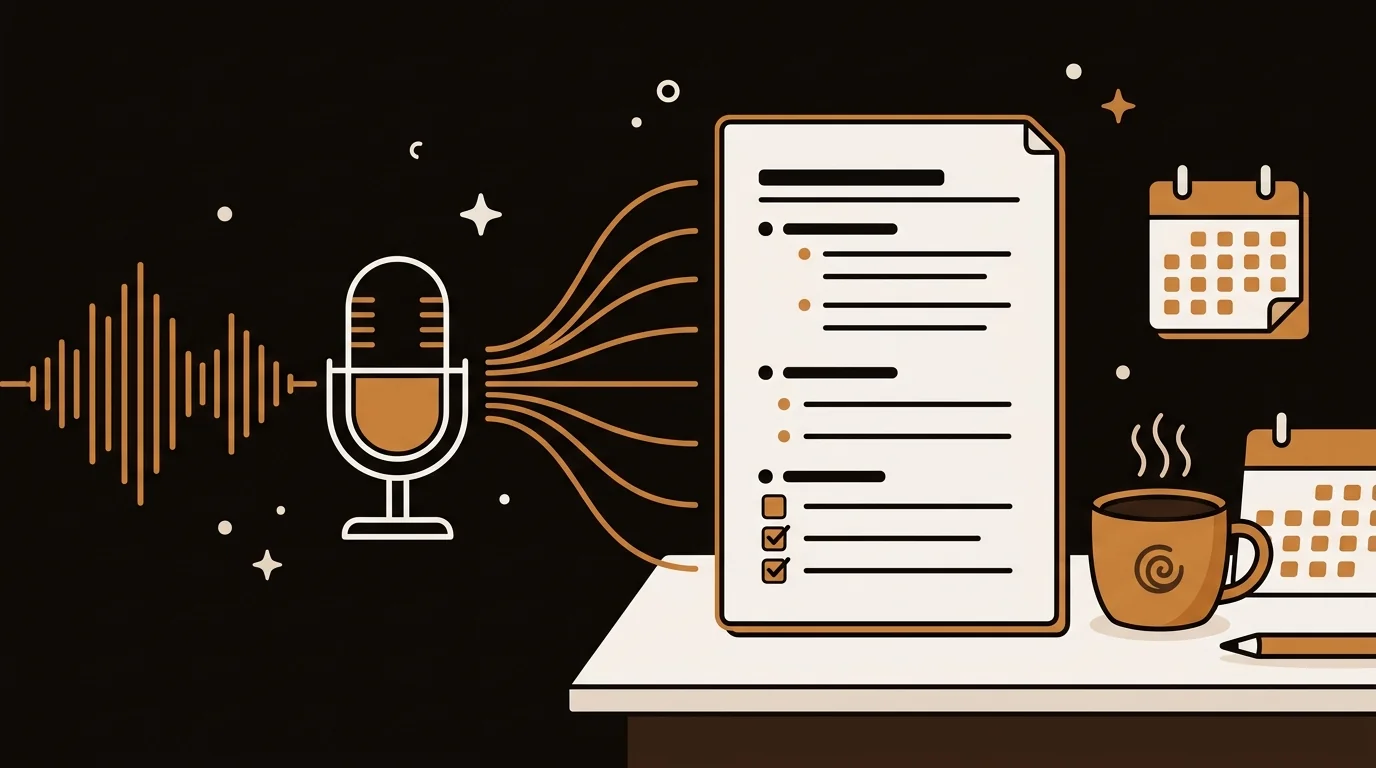
Most AI meeting tools require you to install a bot that joins your call. That's fine when meetings are scheduled in advance. It doesn't work for recorded interviews, informal calls, offline recordings, or meetings where a bot joining the room isn't appropriate. Here's how to get AI meeting summaries from any audio file — no bot required.
The Problem With Meeting Bot Dependency
The dominant meeting transcription tools — Otter.ai, Fireflies, Grain — are built around a live bot that joins your Zoom, Teams, or Google Meet call. This architecture works well for scheduled internal meetings with predictable setups.
It breaks down in several common scenarios:
- Recorded calls you weren't on: a client call a colleague recorded, a vendor demo you missed
- In-person meetings recorded on a phone or dictaphone
- Interviews conducted via phone and exported as audio
- External calls where a visible bot is inappropriate or unwelcome
- Pre-recorded content you need to process as meeting notes (keynotes, webinars, training sessions)
For these cases, you need a tool that processes an audio file directly rather than sitting on a live call. That's what I'll walk through here.
How the Audio Upload Approach Works
At sipsip.ai, our audio transcription pipeline runs Deepgram's AI speech-to-text model against the uploaded file. Here's what happens under the hood when you upload a meeting recording:
- The file is uploaded securely and handed to Deepgram for transcription
- Deepgram produces a timestamped transcript with high accuracy across accents, overlapping speech, and technical vocabulary
- The transcript is passed through our chunk-and-merge LLM pipeline, which produces:
- A structured summary of what was discussed
- Key points — the 4–6 most significant statements, decisions, or action items
- The full transcript, searchable and timestamped
The whole pipeline runs in 3–8 minutes for a typical 60-minute call recording. The output is available in your sipsip.ai history and can be exported or shared.
According to Deepgram's own benchmarks, Nova-2 achieves word error rates under 10% on most professional audio — meaningfully better than older Whisper-based pipelines on accented speech and multi-speaker recordings.
Step-by-Step: Summarize a Meeting Recording
Step 1: Export or locate your recording file
Most meeting and call platforms export in one of these formats:
- Zoom → MP4 (with audio track) or M4A
- Google Meet → MP4 (via Google Drive recording)
- Teams → MP4
- Phone dictaphone → MP3 or M4A
- Dedicated recorder → WAV or MP3
All of these are supported. You don't need to convert the file before uploading.
Step 2: Upload to sipsip.ai
Open sipsip.ai's Transcriber. Select "Upload file" and choose your recording. File size limits are generous enough to handle a standard 60–90 minute call recording.
Step 3: Wait for processing
Processing time scales with recording length. A 30-minute call takes roughly 3–5 minutes. A 90-minute meeting takes 7–10 minutes. You don't need to stay on the page — the result will be in your history when you return.
Step 4: Review and use the output
The output arrives as:
- Summary: a paragraph capturing the meeting's purpose, key discussion points, and outcomes
- Key points: 4–6 bullets with the most important decisions, action items, or findings
- Full transcript: the complete text of the meeting, timestamped and searchable
For meeting notes, the key points list is typically the starting point. Copy it into your notes system, add context, and you have a draft that captures everything important without the hour of manual note-taking.
What Makes Meeting Audio Harder to Summarize
Meeting recordings present specific challenges that general summarization pipelines weren't built for:
Multiple speakers. A one-on-one interview has clear speaker turns; a 10-person team meeting has crosstalk, interruptions, and overlapping audio. Deepgram's diarization handles speaker separation reasonably well for up to 6–8 distinct voices. Very large meetings with many speakers produce less clean speaker attribution.
Technical vocabulary. Domain-specific terms — product names, internal codenames, technical jargon — are the most common transcription errors. After receiving a transcript, a quick find-and-replace for recurring proper nouns takes about 60 seconds and catches 90% of errors that matter.
Long recordings. A 2-hour strategy session is a large context for any LLM. The chunk-and-merge approach we use at sipsip.ai addresses this by processing in segments and merging the outputs — but very long recordings may produce summaries that are slightly higher-level than shorter ones.
Background noise. Recordings made in informal settings — a coffee shop, an outdoor event, a phone call on speakerphone — have higher transcription error rates. A dedicated recorder or headset significantly improves accuracy.
Use Cases Where This Outperforms Live Bots
Client calls where a bot isn't appropriate. Many enterprise clients, legal conversations, and sensitive interviews aren't settings where a visible AI bot joining the call is acceptable. Recording the call and uploading the audio afterward achieves the same output without the friction.
Retrospective processing of old recordings. If you have a library of recorded calls, interviews, or meetings that were never transcribed, you can process them in bulk. There's no time constraint — upload a recording from six months ago and get the same output as a recording from this morning.
Podcast and webinar processing. A recorded webinar, external podcast episode, or conference session can be processed as meeting content. The output format — summary, key points, full transcript — works just as well for a 60-minute panel discussion as for an internal team meeting.
Offline and in-person meetings. Bring a small recorder to an in-person meeting, export the audio as MP3, and upload it. The transcription quality depends on recording conditions but works well with a decent table microphone.
Comparing Meeting Summary Approaches
| Approach | Setup required | Works on recordings? | Private calls supported? | Cost |
|---|---|---|---|---|
| sipsip.ai (file upload) | None | ✓ | ✓ | Free tier available |
| Otter.ai (bot) | Account + bot invite | Limited | — | Paid plans |
| Fireflies (bot) | Account + bot invite | — | — | Paid plans |
| Manual transcription | — | ✓ | ✓ | Time cost |
| Whisper (self-hosted) | Technical setup | ✓ | ✓ | Infrastructure cost |
For teams that need consistent meeting documentation without installing bots into every call, the file upload approach is more practical than it initially appears.
Frequently Asked Questions
What audio formats does sipsip.ai support for meeting transcription?
MP3, MP4, WAV, and M4A are all supported. These cover the export formats of Zoom, Google Meet, Microsoft Teams, and most phone recording apps. No conversion is needed before uploading.
How accurate is the meeting transcription?
Accuracy depends on audio quality. Recordings made with a dedicated microphone or headset in a quiet environment achieve high accuracy — word error rates under 10% in our testing. Speakerphone recordings, recordings with background noise, or phone calls on poor connections have higher error rates. A quick review of the transcript for proper nouns and technical terms catches most issues.
Can it identify who said what in a meeting?
Speaker diarization — separating the transcript by speaker — is supported and works well for 2–6 distinct voices. Very large meetings with many overlapping speakers produce less reliable speaker attribution. The feature labels speakers as "Speaker 1", "Speaker 2", etc. rather than identifying them by name.
How long does it take to summarize a 1-hour meeting recording?
A 60-minute recording typically processes in 5–8 minutes. The result is available in your sipsip.ai history when processing is complete. You don't need to stay on the page.
Is my meeting audio kept private?
Meeting recordings are processed to generate transcripts and summaries and are not used to train models. For enterprise privacy requirements, review the sipsip.ai privacy policy before processing sensitive recordings.
Can I summarize a meeting in a language other than English?
Yes — sipsip.ai supports transcription and summarization in 50+ languages. Upload a recording in any supported language and specify the output language if you need the summary in a different language from the recording.

Building systems and infrastructure that work reliably in production.