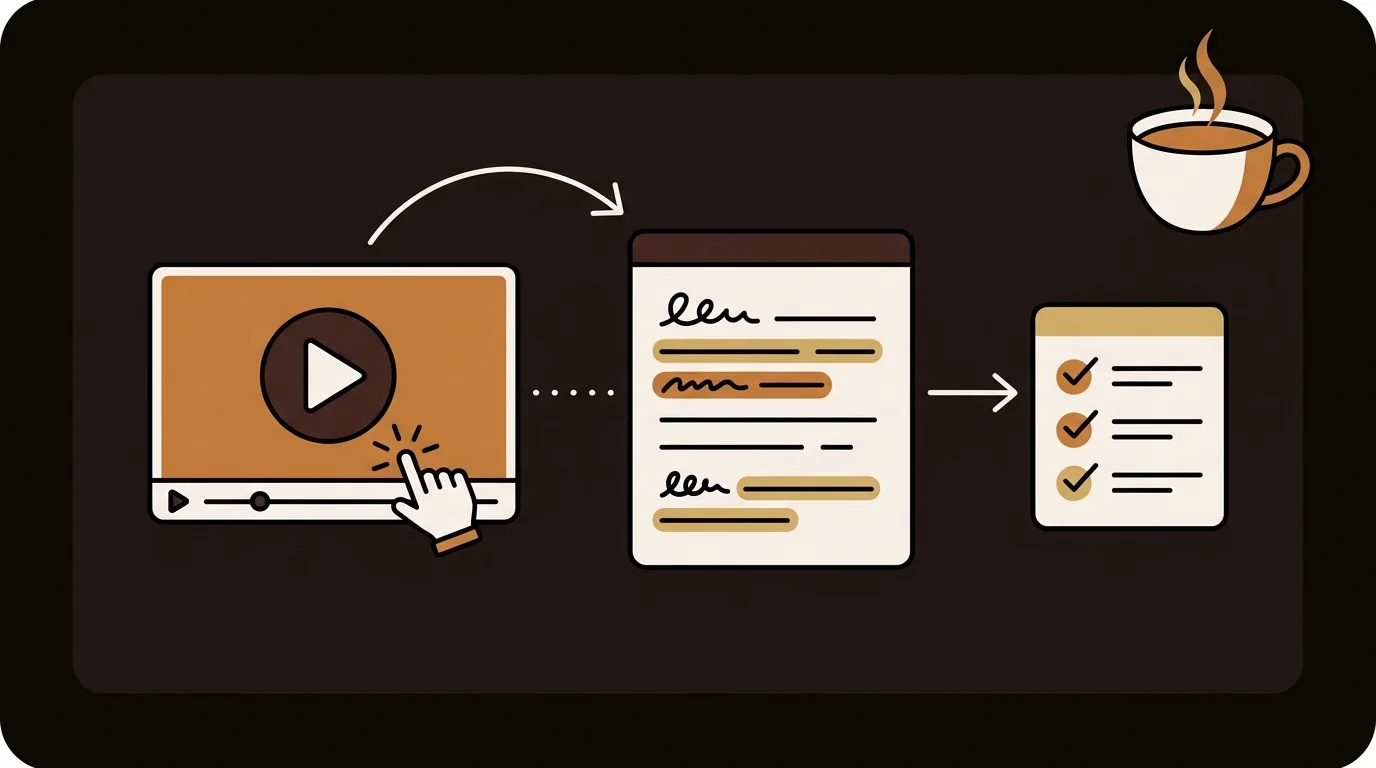
Extracting content from a YouTube video means different things for different use cases: you might need the raw transcript for research, a clean summary for note-taking, or key timestamps for reference. Here's a practical breakdown of the technical options and when to use each — built from the same understanding that went into sipsip.ai's pipeline.
What 'Extracting Content' From a Video Actually Means
A YouTube video encodes information in two ways: the audio track (speech, narration) and the visual track (slides, diagrams, on-screen text). Current AI tools work primarily on the audio — converting speech to text and then processing that text. For most educational and informational content, the audio contains 90%+ of the meaningful information, so audio-based extraction is highly effective.
Visual-only content — charts shown without narration, on-screen code not read aloud — isn't captured by audio-based extraction. It's worth knowing this limitation upfront, especially for content where the slides are as important as the speech.
Method 1: YouTube's Built-In Transcript Panel
YouTube provides a native transcript panel for any video with captions enabled. To access it: click the three-dot menu below the video → 'Show transcript'. You can toggle timestamps on or off and copy the text directly.
Limitations: only works on desktop, only for videos with captions enabled, auto-generated captions have accuracy issues for technical vocabulary, and there's no export option. For a quick check of what's in a video, it works. For systematic extraction, the limitations add up quickly.
Method 2: AI Transcript Extraction Tools
Tools like sipsip.ai's Transcriber extract a clean, accurate transcript by running independent speech recognition on the video's audio — not relying on YouTube's captions. The output is formatted, timestamped text you can copy, search, and export.
- Works on any video with audible speech, regardless of whether captions exist
- Better accuracy than YouTube's auto-generated captions for technical vocabulary and accents
- Timestamped output — click any line to jump to that moment in the video
- Exportable as clean text for use in notes, research, or other tools
Method 3: AI Summarization
If you don't need the full transcript — you need the key points — AI summarization extracts the substance without the verbosity. A summarizer processes the transcript and produces structured output: the main argument, key findings, notable quotes, and actionable takeaways.
For videos you want to review efficiently rather than transcribe in full, summarization is faster and more useful. The sipsip.ai daily brief uses this approach: instead of reading full transcripts, you get a distilled brief of what matters across all the videos you're tracking.
Method 4: Timestamped Search and Navigation
A transcript with timestamps gives you something YouTube's native search doesn't: the ability to search inside a video's content and jump to the exact moment a topic is discussed. This is useful for long-form content where you know a specific topic was covered but not when.
In sipsip.ai, the transcript viewer lets you click any sentence to seek to that position in the video. A 3-hour conference recording becomes a navigable document — search for a term and jump directly there, without scrubbing through the timeline.
Related Article
How to Get a YouTube Transcript (3 Free Methods for 2026)
Choosing the Right Method
| Use Case | Best Method | Why |
|---|---|---|
| Quick reference check | YouTube built-in transcript | No setup, immediate access |
| Research and note-taking | AI transcript tool | Accurate, exportable, searchable |
| Staying current on many videos | AI summarization | Fast, structured, scalable |
| Finding specific moments in long video | Timestamped transcript | Precise navigation |
| Content repurposing | AI transcript tool | Clean text ready for editing |
What Can't Be Extracted (Yet)
Audio-based extraction has real limits. Visual-only information — diagrams, tables, code on screen that isn't read aloud — doesn't appear in the transcript. Tone and speaker emphasis are lost. And content that depends on context from previous videos in a series won't be self-explanatory from a single video's transcript alone.
Frequently Asked Questions
Can I extract content from YouTube videos in languages other than English?
Yes. Modern ASR models support 50+ languages. sipsip.ai handles multilingual content — the transcript is produced in the video's spoken language. For Spanish, French, German, Japanese, and Chinese content, accuracy is close to English.
Is extracting YouTube video content legally allowed?
Extracting transcripts for personal use, research, and education is generally covered under fair use. For commercial repurposing of transcribed content, review YouTube's Terms of Service and the creator's licensing. Always credit sources when using extracted content publicly.
Why does my extracted transcript have errors?
Errors come from: background noise or music in the source video, non-standard accents, domain-specific vocabulary not well-represented in training data, or overlapping speakers. Better tools apply post-processing to reduce these errors. Accuracy above 95% is typical for clear, single-speaker content.
Can I extract content from private or unlisted YouTube videos?
Transcript tools work on publicly accessible YouTube URLs. Private videos can't be processed. Unlisted videos — accessible via direct URL — work fine if you have the link.
How do I get the most accurate transcript from a YouTube video?
Choose a tool that runs independent ASR rather than using YouTube's captions, ensure the source video has clear audio, and use a tool that applies a cleanup pass for punctuation and paragraph breaks. sipsip.ai's Transcriber handles all of this automatically.

Building systems and infrastructure that work reliably in production.